The project was active from 2019 to 2022 and is currently on hold. The project may be resumed in the future.
Download version 1.3.5 as the fscontent_135.zip archive (19 MB)
Figure Skater Content (or FS Content for short) is a Windows desktop application dedicated to figure skating. In this context, content refers to a skater’s planned program content — the elements and other details declared for their skating program.
The main purpose of the application is to provide quick and convenient access to this information on a computer while watching a live competition broadcast.
Additional features include searching for information about competitions and skaters, as well as birthday reminders for figure skaters.
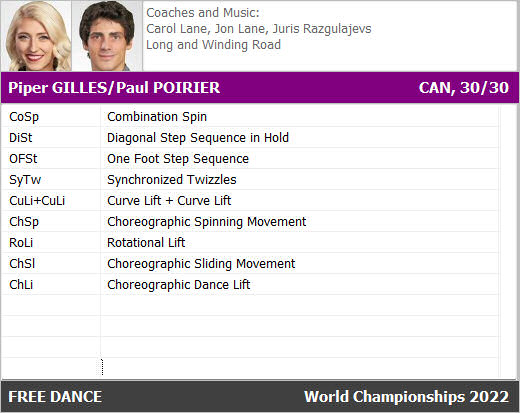
The main window of the application consists of a content table and three panels: top, middle, and bottom.
The content table consists of two columns and 13 rows. The first column contains abbreviated element names, while the second column provides the full names of those elements. At present, the number of elements declared by skaters does not exceed 13.
The top panel contains two photos, as well as information about the skater’s coaches and music.
The middle panel contains the skater’s first and last name, along with their country and age at the time of the competition. Please note that the country and age shown are not necessarily current; they correspond to the time of the competition.
The bottom panel contains the name of the discipline and the name of the competition.
The following elements are clickable:
Since the primary purpose of the application is to view content while watching a live broadcast, the main window can be made smaller by hiding the top and bottom panels. This can be done through the menu, which is opened by right-clicking the content table. When watching a skater’s performance, it is recommended to enable “Always on Top.”
The same menu also allows you to increase the font size in the content table. The font size in the Coaches and Music section will also increase. The image below shows an example of the maximum available font size. If a line in the element description does not fit in the table, the full text can be viewed in a tooltip by hovering the mouse pointer over the corresponding row.
In version 1.0.7, the ability to display the base values of elements was added as an alternative to displaying their full descriptions. You can switch between base values and element descriptions through the application settings using the option “Show base values of elements instead of descriptions”, or by pressing the Ctrl+Tab keyboard shortcut. The values of all elements in the content are summed up to produce a total value.
Please note that hiding and minimizing are not the same thing. Hiding places the application in the system tray, while minimizing reduces the window to a button on the taskbar.
Double-clicking the skater’s photo in the main window opens the Skater Profile window. (Note: on the ISU website, a skater’s profile page is called Biography.) The new window displays a medium-sized photo of the skater.
The country, age, and coaches shown in the profile reflect the skater’s current information, unlike the competition data shown in the main window.
In addition to the skater’s basic information, the profile contains their best results and links to their personal pages on the internet.
The best overall result is calculated as the sum of the skater’s best Short Program and best Free Skate scores. Please note that this is not always the same as the overall result shown on the ISU website.
Text displayed in blue, including text on buttons, indicates a link to the ISU website and requires a web browser to open. Please note that links in the application open with a single click, as they do in web browsers.
The “More Details” button opens the skater’s detailed Biography page in a web browser.
Double-clicking the photo opens a window displaying a large photo. The medium-sized and large photos may show different images.
Clicking the left or right side of the large photo displays another large photo of the skater or, in the case of a pair or ice dance team, their partner. The Spacebar performs the same action.
To close the large-photo window, click the center of the photo or press Esc.
The second major convenience of the application is its local database search.
Please note that FS Content does not maintain its own independent database. Instead, it works with ISU data, meaning that the local database is essentially a copy or projection of the ISU database. For more information, please see the Disclaimer section.
The local database can be searched by first name/last name, age, program elements, country, coach, best results, music, competitions, and skaters’ personal web pages.
Note: The local database includes not only skaters who actually participated in major competitions, but also those who were listed as alternates for those competitions.
When searching by name, it is not necessary to enter the full first or last name. Just a few letters—more than three—are sufficient. In the second column of the search results, a single letter indicates the skater’s gender (M/F), while the fifth column indicates the Short Program or Free Skate (SP/FS), including for pairs and ice dance teams.
Hovering the mouse pointer over an abbreviated country name displays a tooltip with its full name. Hovering over a competition name displays the date of the competition.
It is important to know how to use the search results. Clicking one of the first three columns (last name/first name, gender, date of birth) opens the skater’s profile window. Clicking the fifth or sixth column (program type, competition name) displays the skater’s content in the main application window.
Searches by coach can also be performed using just a few letters. Incidentally, this can also reveal how inconsistently the ISU database is maintained.
The same applies to searches by music. There is no need to enter the full title of a piece of music. For example: Car, Carm, Carmen.
Clicking a column header sorts the data in that column in ascending order. Pressing a letter or number while a column is active performs a quick search by the first character.
Some of the application settings duplicate options available in the menu described above.
On the Interface tab, the “Last Name Before First Name in Header” option controls the name order in the middle panel of the main window. In other parts of the application, the last name is always displayed before the first name unless a separate option specifies otherwise. In the local database, the last name also always comes before the first name for easier searching.
On the Updates tab, the application only provides a manual check for a new version. If the latest version is already installed, no notification is displayed.
On the Colors tab, you can customize the background and text colors of the middle and bottom panels of the main window.
The “Remind Me About Birthdays” option allows you to set how many days in advance you want to receive an automatic reminder. The reminder appears as a notification window containing a list of upcoming birthdays. Rows highlighted in color are clickable; clicking one opens the skater’s profile. The number of days until the birthday is shown in parentheses, along with the skater’s gender and country.
The application displays personal data obtained publicly from the open database of the International Skating Union (ISU), which is accessible to all Internet users through the Union’s official website at www.isu.org.
You can review the organization’s privacy policy here: ISU Privacy Policy
The application is provided “as is.” No warranties, express or implied, are provided or intended. You use this software at your own risk.
The authors and distributors of the application shall not be held liable for any loss or corruption of data, malfunction or disruption of other software or the operating system, or any loss of profits arising from the use or misuse of this software.